1. Introduction
SDL (Simple DirectMedia Layer) is a powerful, cross-platform multimedia development library. It’s widely used in game development, emulators, and visualization software. SDL provides a unified interface for developers to access core functionalities like graphics rendering, audio output, and input from keyboards, mice, and game controllers.
This guide will walk you through the detailed steps for installing and configuring SDL2 on the three major operating systems: Windows, Linux, and macOS. This will help you get started with SDL development quickly and efficiently.
2. Prerequisites
Before you begin the installation process, make sure you have the following ready:
- A functioning computer with a supported OS (Windows 10/11, Ubuntu, or macOS).
- A C++ development environment, such as:
- Windows: Visual Studio, MinGW + VSCode, or Code::Blocks.
- Linux: g++ + Vim/VSCode.
- macOS: Xcode or clang + an editor.
- A foundational understanding of C++ programming.
- (Optional) CMake (a cross-platform build tool) installed and configured.
3. Choosing and Downloading the SDL Version
SDL2 is the current stable and most widely used version. You can find the latest releases on the official SDL website.
- Go to the official SDL website: https://www.libsdl.org.
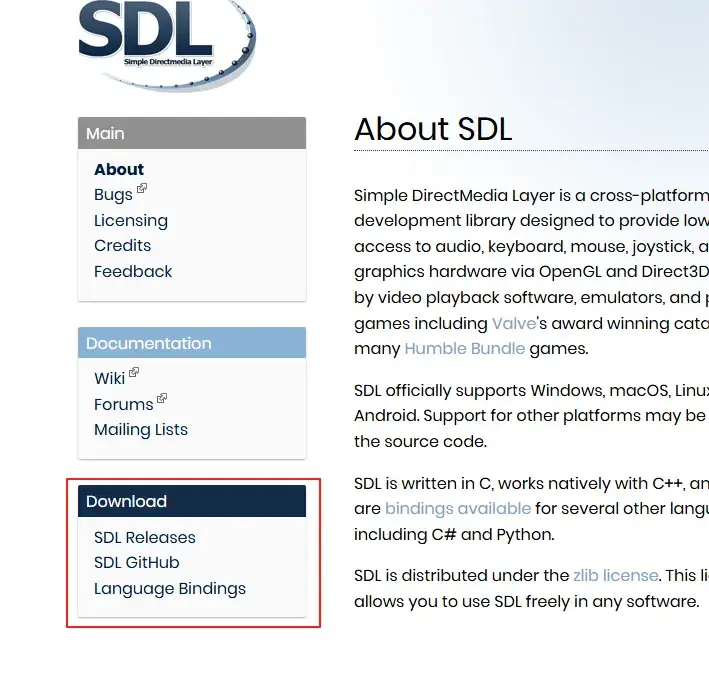
- On the homepage, locate the “Download” section. This section has three main links:

- SDL Releases: A list of binary library files and source code for the latest versions.
- SDL GitHub: The main repository for all SDL projects.
- Language Bindings: Links for bindings in other programming languages.
- For this guide, we’ll focus on the SDL Releases. The latest stable version of SDL2 (as of this writing) is 2.32.8. All instructions and examples below refer to this version unless otherwise specified.
- Download the appropriate development package for your platform and development tool:
SDL2-devel-2.32.8-VC.zip(for Visual Studio on Windows).SDL2-devel-2.32.8-mingw.tar.gz(for MinGW on Windows).Source code(tar.gz)(for building from source, which is detailed below).
4. Installation on Windows (Visual Studio)
4.1. Extraction and Directory Structure
- Download and unzip
SDL2-devel-2.32.8-VC.zip. - Move the extracted folder to a convenient location, such as
C:\Libs\SDL2\. - The directory structure should contain:
include/: SDL header files.lib/x64/andlib/x86/: Static and dynamic libraries for different architectures.lib/SDL2.dll: The dynamic link library. You’ll need to copy this to your executable directory or add its path to your system’s environment variables.
4.2. Create a Visual Studio Project
- Open Visual Studio and create a new “Empty Project”.
- Right-click on the project in the Solution Explorer and select “Properties” to open the project property pages.
4.3. Configure Build Parameters
- In “C/C++” -> “General”, add the include directory:
- Additional Include Directories:
C:\Libs\SDL2\include
- Additional Include Directories:
- In “Linker” -> “General”, add the library directory:
- Additional Library Directories:
C:\Libs\SDL2\lib\x64
- Additional Library Directories:
- In “Linker” -> “Input”, add the required dependencies:
- Additional Dependencies:
SDL2.lib; SDL2main.lib;
- Additional Dependencies:
4.4. Copy the DLL
Copy the SDL2.dll file from lib\x64 to your project’s output directory (e.g., Debug/ or Release/).
4.5. Write a Test Program
Create a new .cpp file and add the following code:
C++
#include <SDL.h>
#include <iostream>

int main(int argc, char* argv[]) {
    if (SDL_Init(SDL_INIT_VIDEO) != 0) {
        std::cerr << "SDL_Init Error: " << SDL_GetError() << std::endl;
        return 1;
    }

    SDL_Window* win = SDL_CreateWindow("Hello SDL",
        SDL_WINDOWPOS_CENTERED, SDL_WINDOWPOS_CENTERED,
        640, 480, SDL_WINDOW_SHOWN);
    if (!win) {
        std::cerr << "SDL_CreateWindow Error: " << SDL_GetError() << std::endl;
        SDL_Quit();
        return 1;
    }

    SDL_Delay(2000);
    SDL_DestroyWindow(win);
    SDL_Quit();
    return 0;
}
4.6. Compile and Run
Press Ctrl+F5 to run your program. A blank window should appear and close after 2 seconds.
5. Installation on Windows (MinGW + CMake)
5.1. Download and Extract the MinGW Package
- Download
SDL2-devel-2.x.x-mingw.tar.gz. - Extract the archive to a location like
C:\SDL2_Mingw\. This folder should containincludeandlibdirectories.
5.2. Create a CMake Project Structure
Create a new project folder with the following structure:
MyProject/
├── CMakeLists.txt
└── main.cpp
main.cppshould be the same as the test program above.CMakeLists.txtshould contain the following:
CMake
cmake_minimum_required(VERSION 3.10)
project(MySDLApp)

set(CMAKE_CXX_STANDARD 17)

include_directories("C:/SDL2_Mingw/include")
link_directories("C:/SDL2_Mingw/lib")

add_executable(MySDLApp main.cpp)
target_link_libraries(MySDLApp SDL2 SDL2main)
5.3. Compile and Run
- Open a terminal and navigate to your project directory.
- Create a build directory and run CMake:Bash
mkdir build cd build cmake .. mingw32-make - Ensure that
SDL2.dllis copied to the executable’s output directory.
6. Installation on Linux (Ubuntu Example)
6.1. Install the SDL2 Development Package
Use your system’s package manager to install SDL2.
Bash
sudo apt update
sudo apt install libsdl2-dev
6.2. Compile and Run the Test Program
Use g++ with the sdl2-config command to automatically configure the necessary flags.
Bash
g++ main.cpp -o sdl_test `sdl2-config --cflags --libs`Run the program:
Bash
./sdl_testIf successful, an SDL window will appear.
7. Installation on macOS
7.1. Install SDL2 with Homebrew
The easiest way to install SDL2 on macOS is by using the Homebrew package manager.
Bash
brew install sdl27.2. Compile a Sample Program
Use clang++ to compile your program.
Bash
clang++ main.cpp -o sdl_test `sdl2-config --cflags --libs`If sdl2-config is not found, you may need to set your environment variables or manually specify the include and library paths.
8. Static Linking with SDL
Note: The official SDL releases no longer provide a pre-compiled SDL2-static.lib. To get the static library, you need to build it from the source code. The source package (downloadable from the official website) includes project files for various platforms. Using CMake is a highly recommended and cross-platform approach.
Assuming your extracted source code directory is named sdlsrc (containing CMakeLists.txt), follow these steps using absolute paths:
- Create and navigate to a build directory.CMake
mkdir build && cd build - Generate the project files using CMake. Specify
SDL_STATIC=ONandSDL_SHARED=OFFto build only the static library, and set an installation prefix.CMakecmake sdlsrc -DSDL_STATIC=ON -DSDL_SHARED=OFF -DCMAKE_INSTALL_PREFIX=sdl-static-lib-full-path - Build the project.CMake
cmake --build . --config Release - Install the built libraries. This step is crucial to ensure all necessary files (like
SDL_config.h) are placed correctly.CMakecmake --install .
The resulting SDL-static.lib is your static library.
Visual Studio Configuration for Static Linking
If you’re using Visual Studio, you’ll need to update your project properties:
- Include Directories:
SDL/include - Library Directories:
SDL/build/Release - Additional Dependencies:
SDL2-static.lib; SDL2main.lib; imm32.lib; winmm.lib; version.lib; setupapi.lib; shell32.lib; user32.lib;
After static linking, you no longer need to copy SDL2.dll to your executable directory. You might encounter error LNK2001: unresolved external symbol SDL_main. See the “Common Issues” section for solutions.
9. Common Issues and Solutions
| Problem | Solution |
SDL.h not found | Double-check that your include path is configured correctly. |
| Undefined reference to SDL functions | Make sure you’ve linked SDL2.lib and SDL2main.lib. |
| Missing DLL runtime error | Verify that SDL2.dll has been copied to your executable’s output directory. |
sdl2-config not found | On Linux/macOS, ensure the SDL2 development package is installed and PATH is set correctly. |
| Linker error: undefined symbol | Check your build order and linker settings to ensure all dependencies are included. |
error LNK2001: unresolved external symbol SDL_main | This is related to the main function entry point. Solution 1: Add #undef main before your main function. Solution 2: Add “SDL_MAIN_HANDLED” macro to your project. |
导出到 Google 表格
Other Useful SDL Libraries
In addition to the main SDL library, there are several extension libraries that enhance its capabilities:
- SDL_image: For loading common image formats like PNG, JPG, and BMP.
- SDL_mixer: For playing sound effects and background music.
- SDL_ttf: For rendering text.
- SDL_net: For network functionality.
- SDL_gfx: For basic drawing functions like lines, circles, and polygons.
This guide is based on personal experience and may contain omissions or errors. Feel free to leave a comment with any corrections or suggestions!